A display.
A dial.
Your camera.
Turn a visible meter reading into a number you can use. Fieldeng reads digital displays and estimates analog gauge values, then asks you to check the result before it fills a field.
Try Camera in the Android testAndroid closed test available now.
Frames stay on this device. No account required in the app.
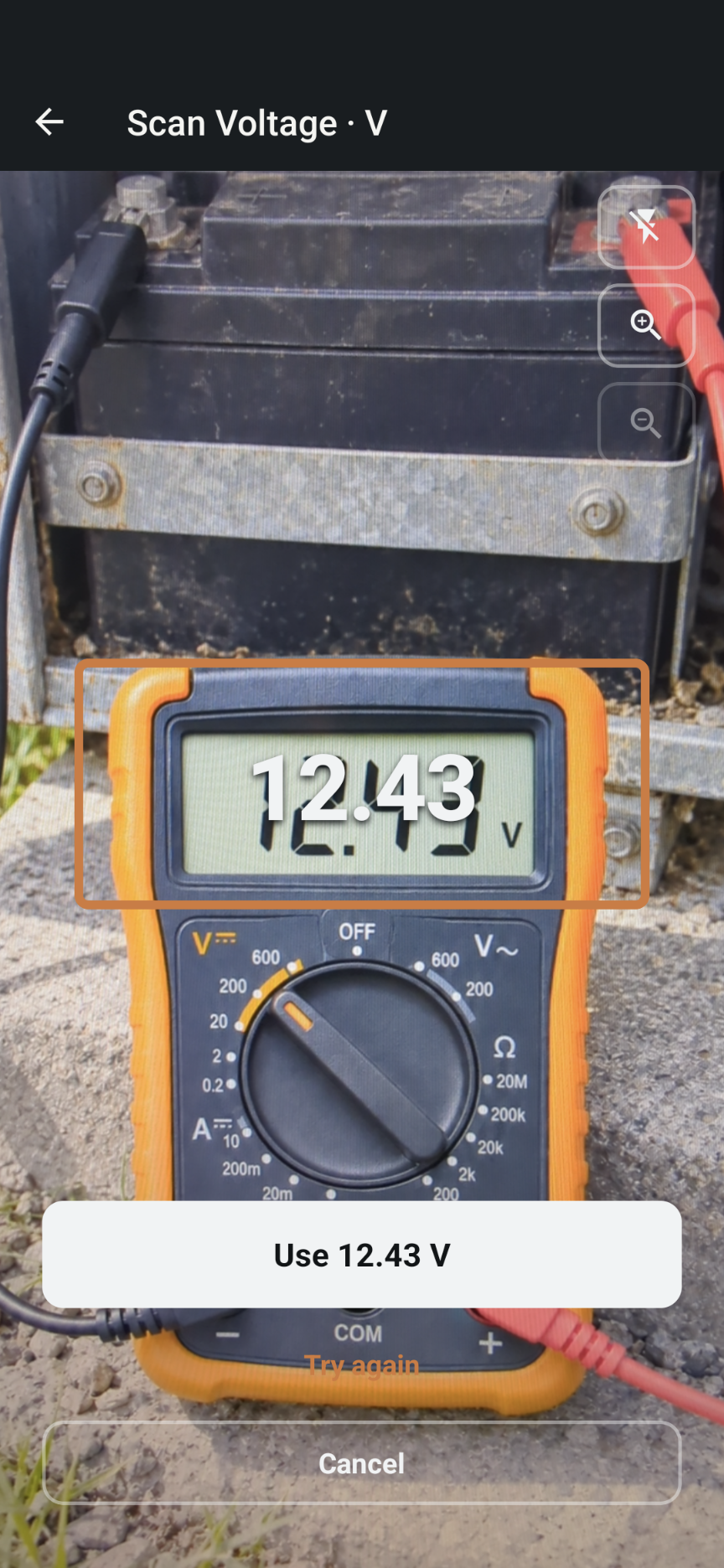
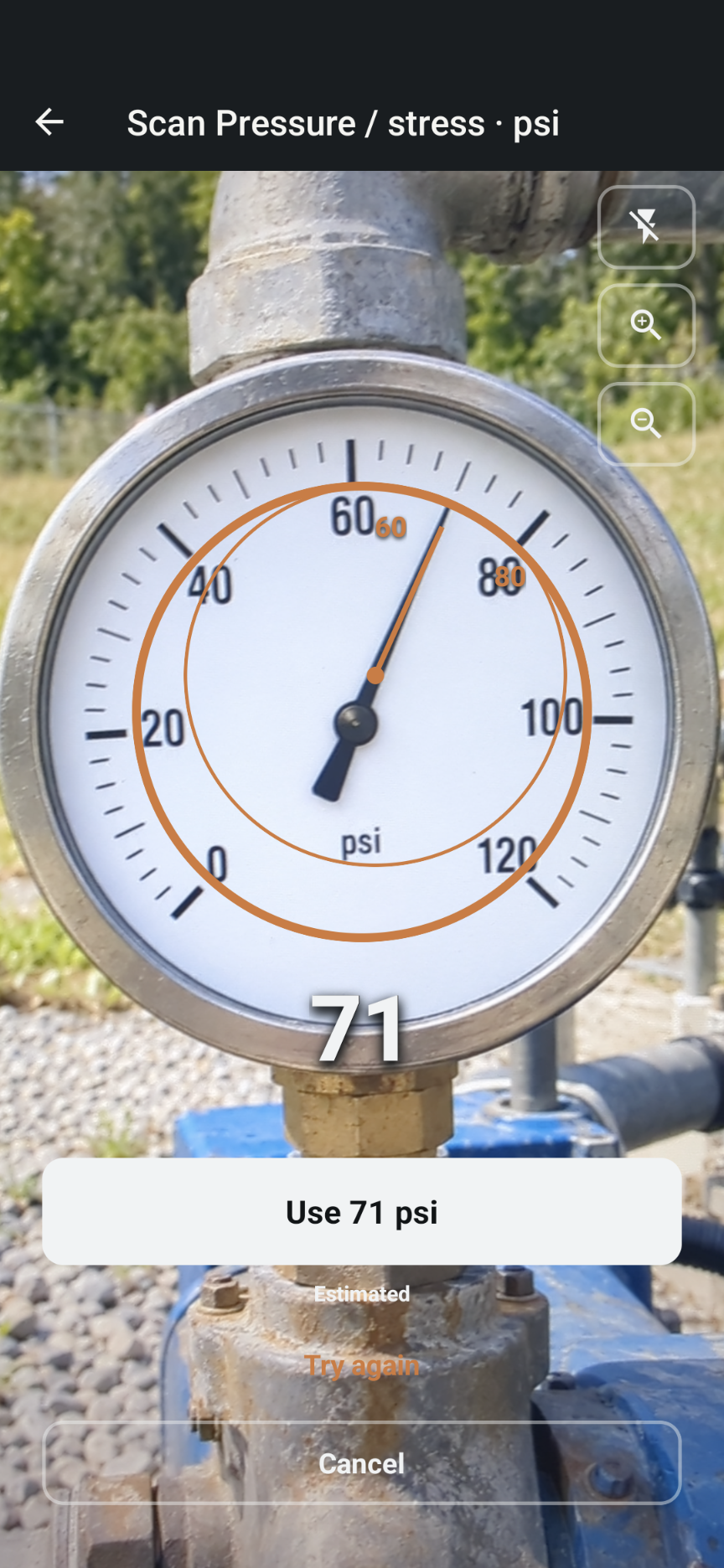
Existing Fieldeng camera demonstration screens. Example values illustrate the workflow and do not establish recognition accuracy. Camera screens retain their capture interface in either page theme.
Point.
Read.
Confirm.
- Choose the reader. Open Field → Camera. Choose Display for a numeric meter face or Gauge for an analog needle.
- Match the measurement. Choose the kind and check the unit. Frame a clear view of the display or dial.
- Review the proposal. Compare the value with the instrument itself. For a gauge, check the dial range and needle overlay; adjust the range controls if needed.
- Use or try again. Accept only a reading you have checked. Choose Try again if the proposal is wrong, then review the reading before saving.
Keep the reading with the job.
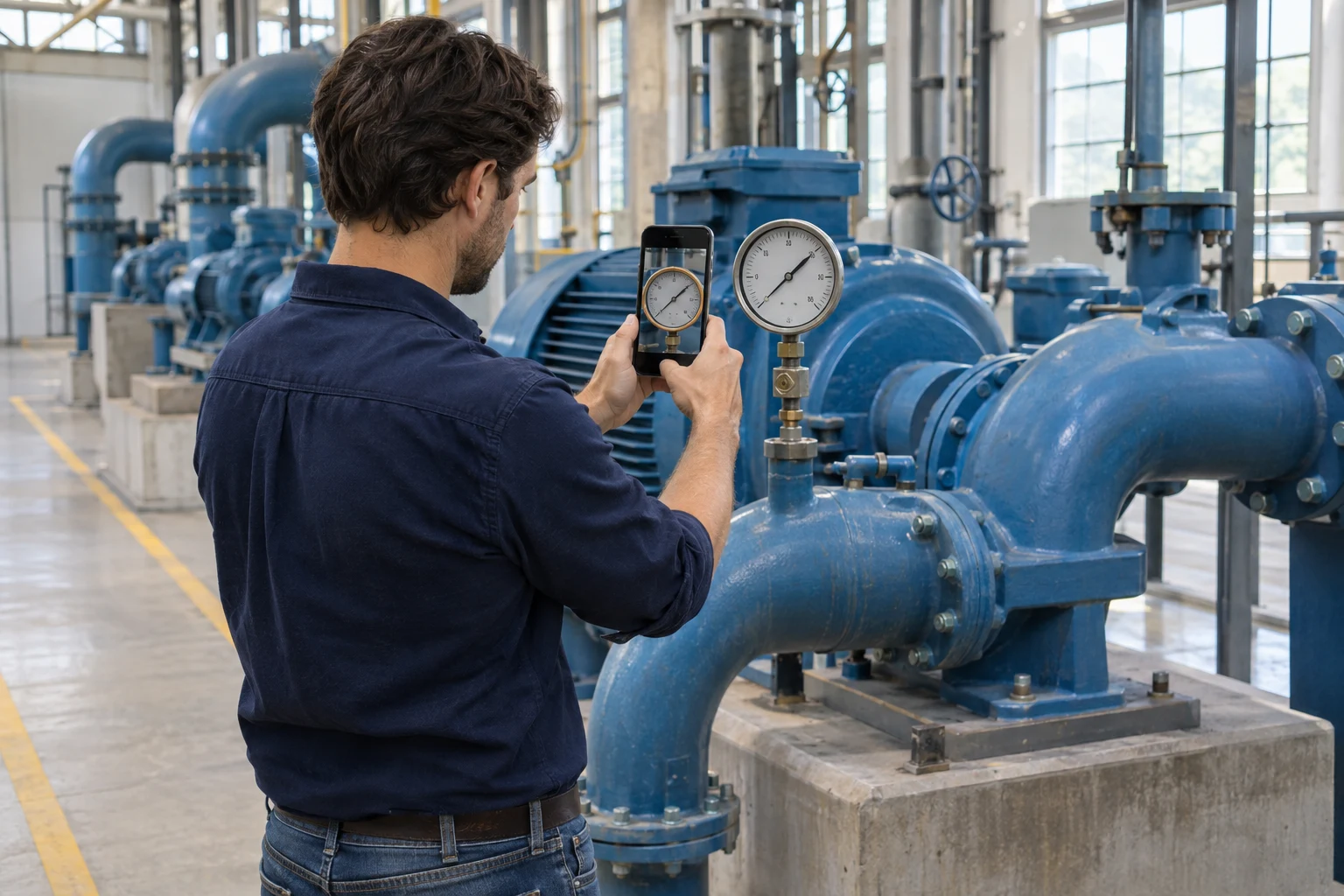
A pump-room pressure check or a meter on the bench: capture the number while the instrument is in front of you. Review it, then keep it with the relevant location or asset.
Choose what’s
in front of you.
Different instruments need different checks. Recognition proposes a reading; you decide whether it matches.
- Digital display
- Use Display for a numeric meter face or LCD. Check every digit, the decimal point, any minus sign, and the selected unit.
- Analog gauge
- Use Gauge for a needle dial. Check the scale minimum and maximum, the sweep, and the needle position. An incorrect scale can produce a plausible but incorrect value.
- Photo record
- Choose Photo when you want a still for the record. A photo and a confirmed numeric reading serve different purposes.
A second look
is part of it.
Camera readings are estimates until you confirm them. Recognition does not certify the instrument or its measurement.
- Glare, blur, shadows, and an angled view can hide digits or dial markings. Improve the view and try again when the proposal does not match.
- For analog gauges, verify the range and unit on the scale you intend to read. Do not accept an overlay that follows the wrong needle or scale.
- The phone reads the visible instrument; the instrument still determines the underlying measurement. Confirm against its face before using the value.
- Camera frames are processed on this device and are not uploaded. Engineering formulas remain deterministic; recognition supplies a proposed input.
Before you try it.
Can it read both digital and analog meters?
Yes. Display reads numeric meter faces and LCDs; Gauge estimates values from analog needle dials. Results depend on the instrument and the camera view, and require your confirmation.
Does it save a recognized number automatically?
No. You confirm the proposal before it fills a field, then review before saving. Use Try again when the reading is wrong.
Are camera frames uploaded?
No. Camera frames stay on this device, as described in the Camera instructions.
What if the gauge range is wrong?
Check the dial range controls against the instrument. Verify the minimum, maximum, and sweep before accepting an estimate.
How do I try it?
Join the Android closed test and install Fieldeng. No account is required in the app; Google Play enrollment and installation require internet access and a Google account.

Read it.
Check it.
Keep it.
Start with a display or dial.
Confirm the number that matters.
Android closed test · Public launch coming to Google Play