A level.
An angle finder.
Your phone.
Check a shelf or workbench. See the slope of a surface. Compare one angle with another. Fieldeng uses your Android phone’s motion sensors to turn those checks into readings you can keep.
Try Level in the Android testClosed test available now. Public launch coming to Google Play.
Core tools work offline. No account required in the app.
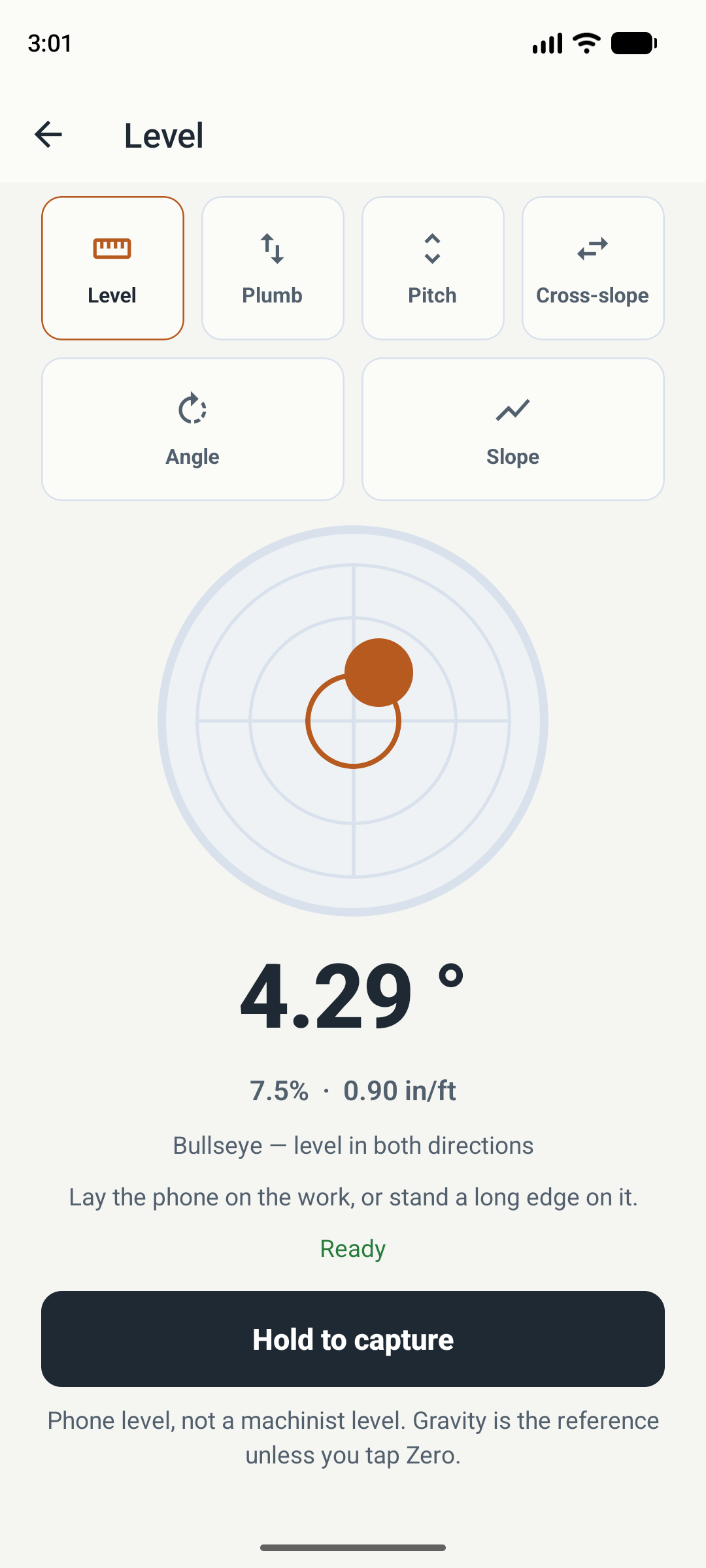
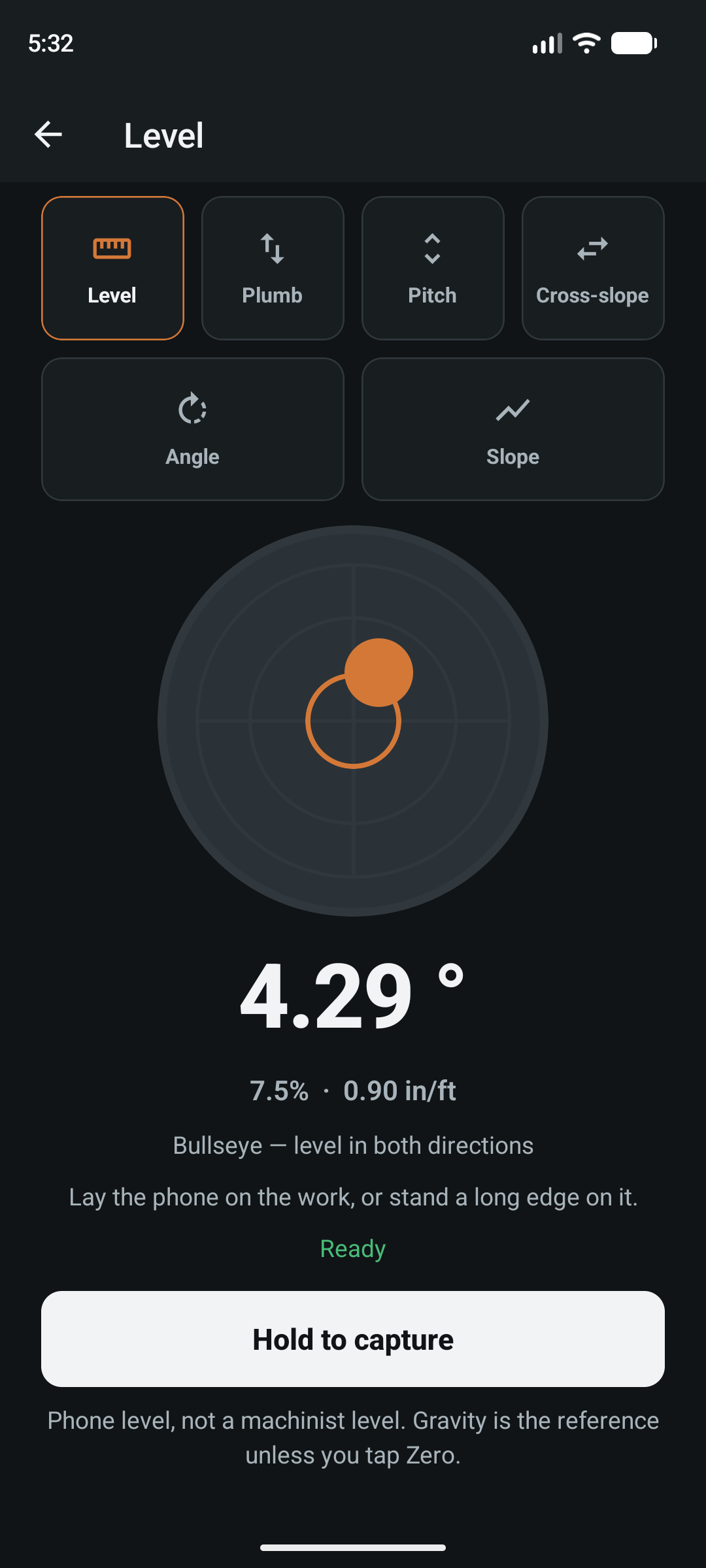
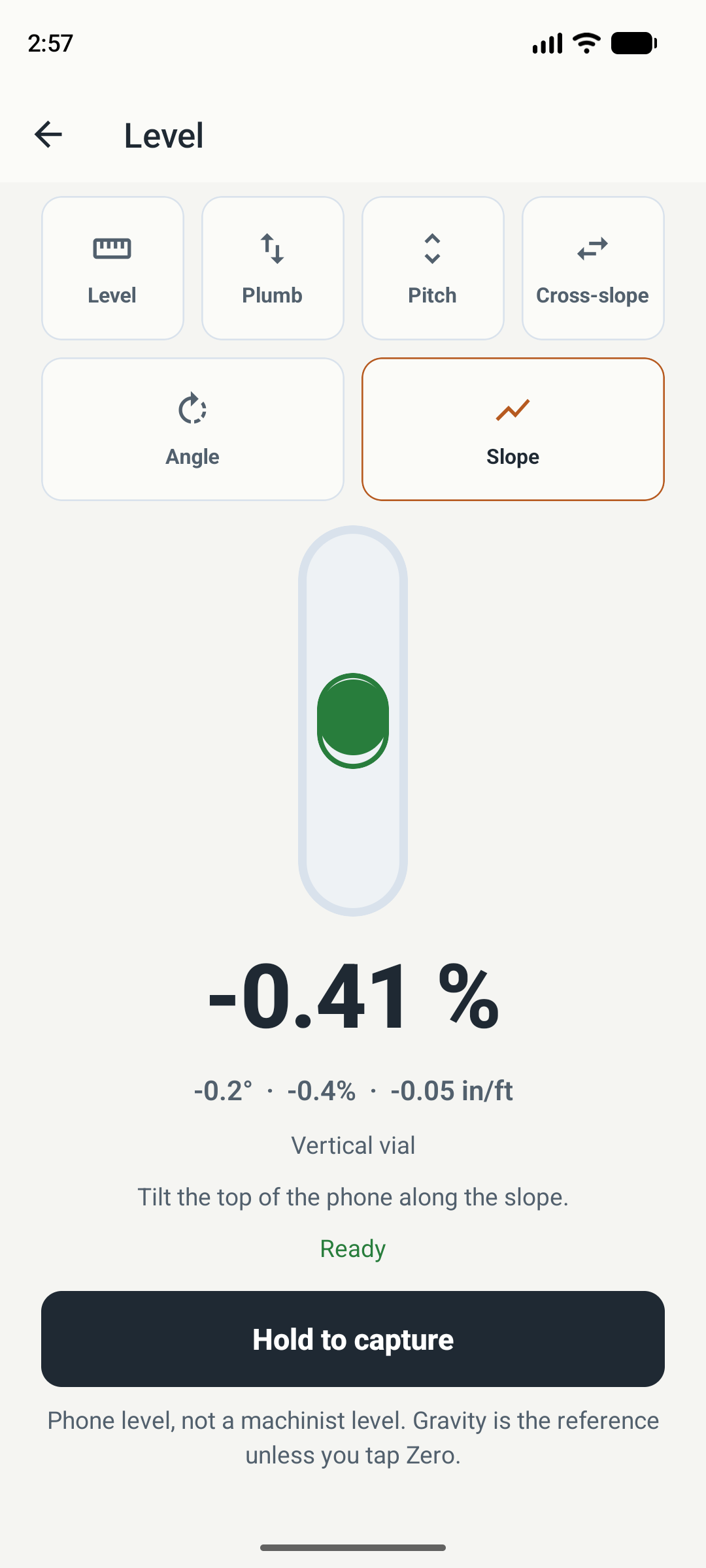
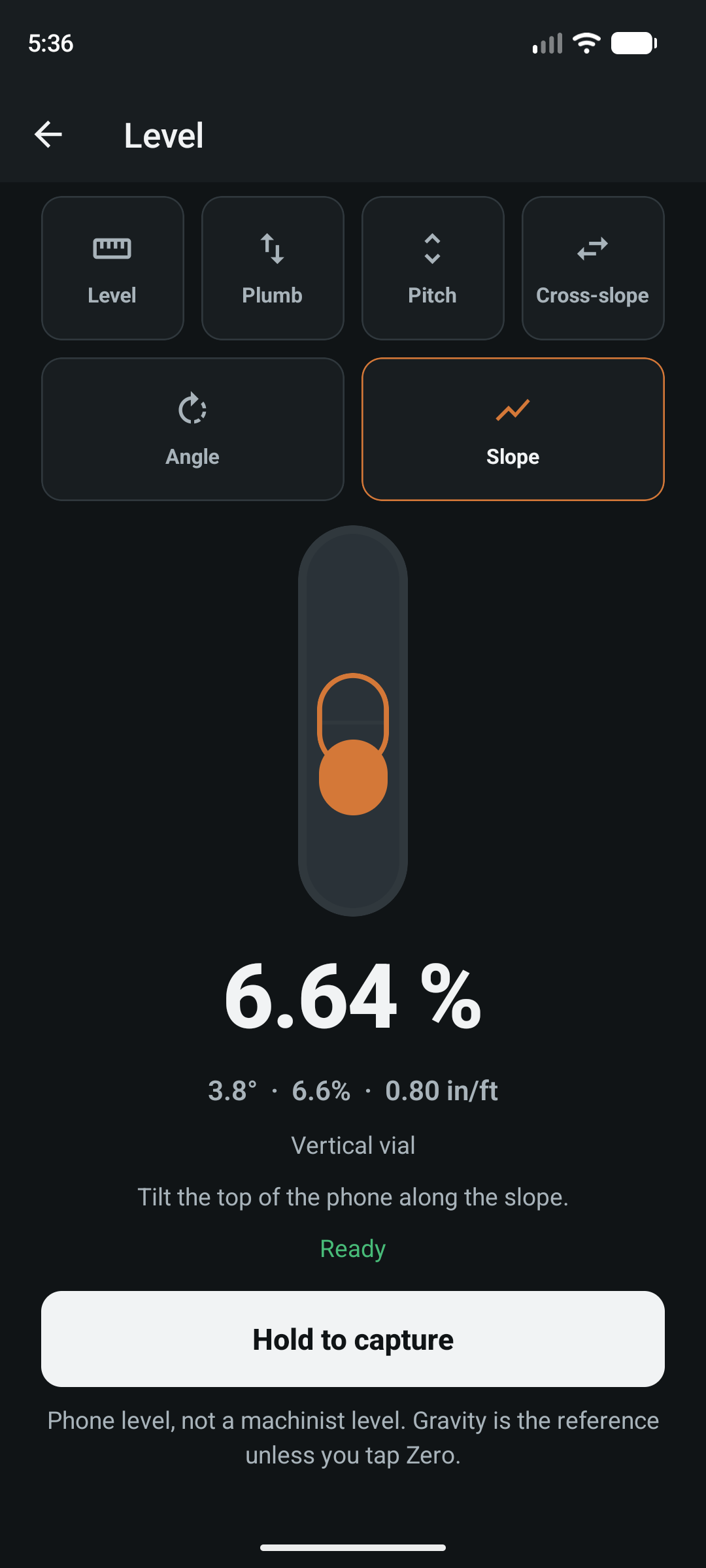
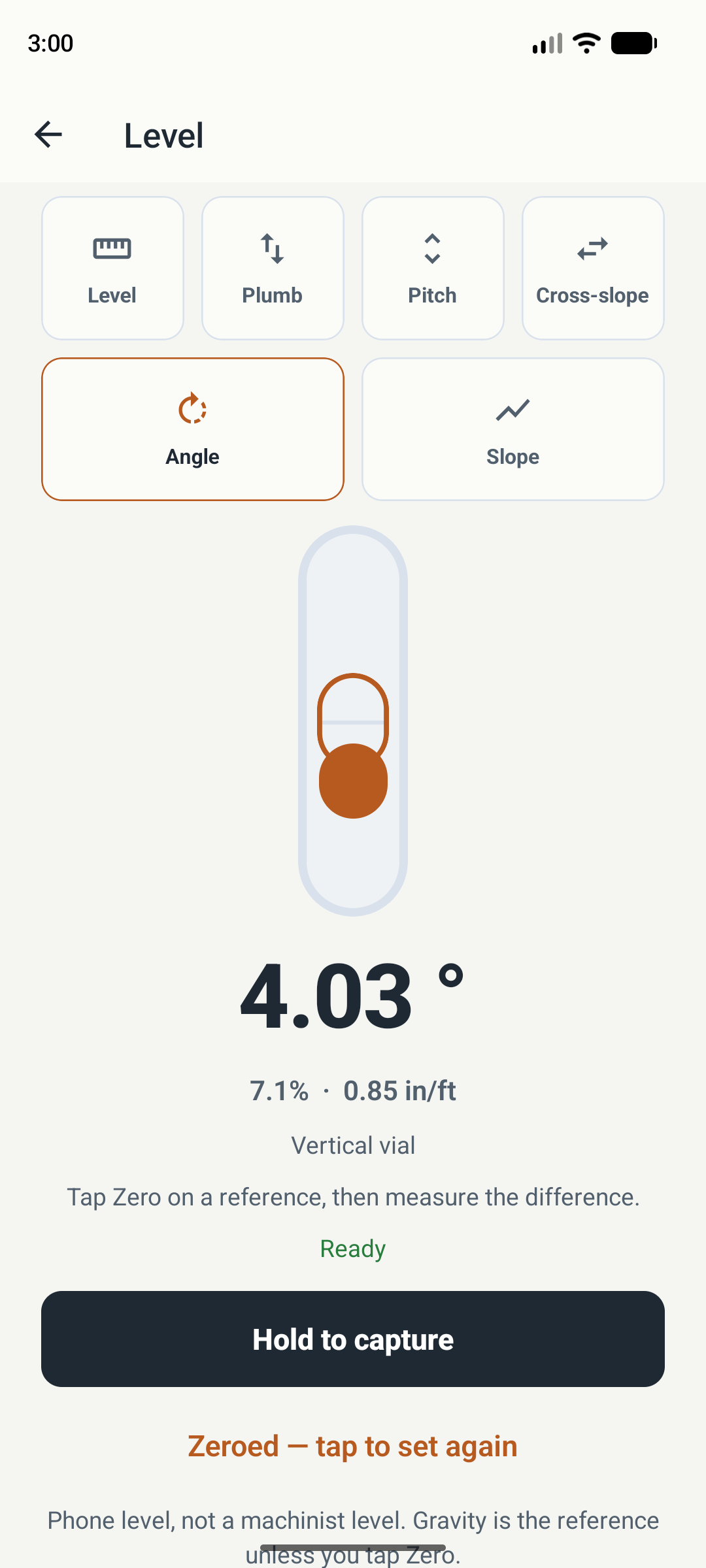
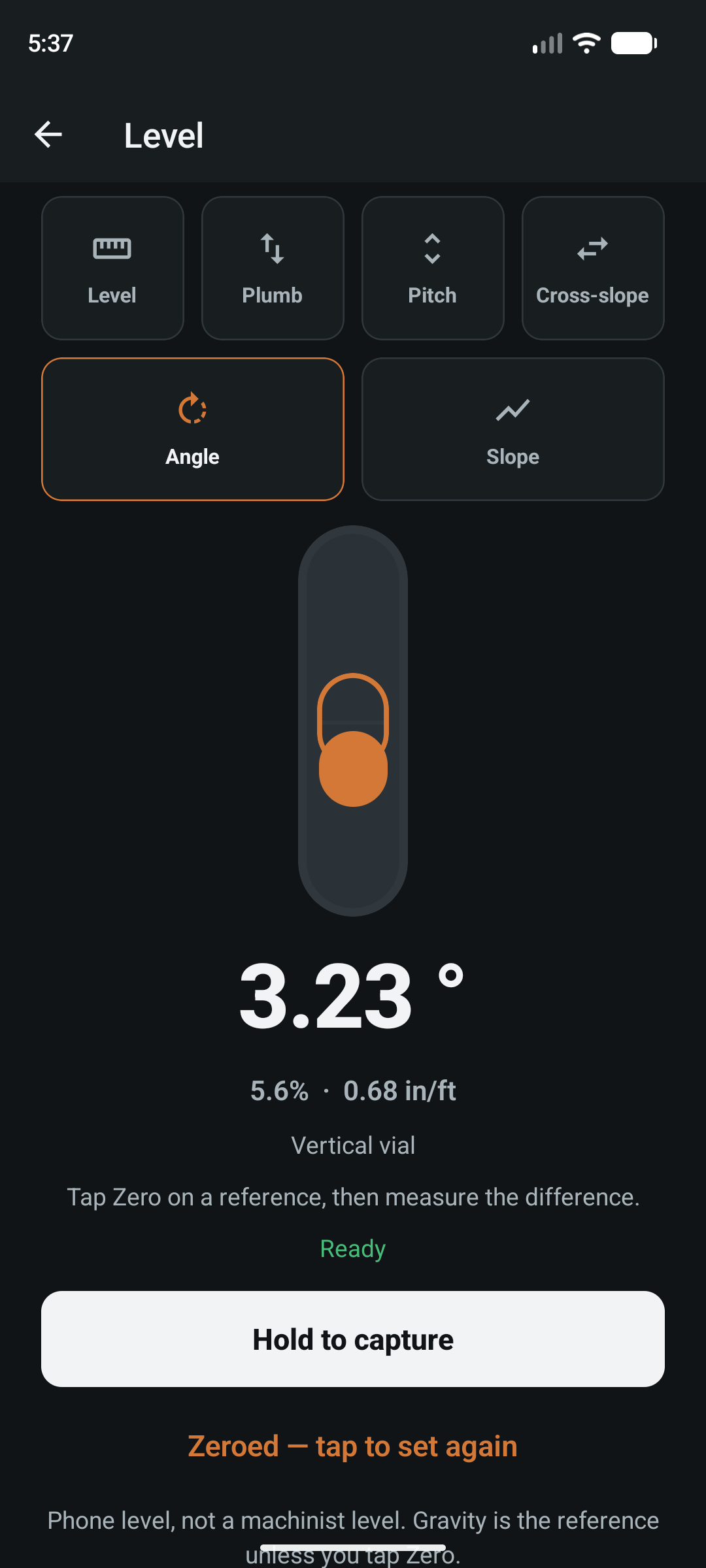
Actual app screens captured on a Pixel 8 Android emulator. Sensor values are simulated to demonstrate the controls, not measurements of a real shelf or an accuracy test. Screens follow your selected light or dark theme.
Six ways to
check an angle.
Pick the mode for the surface in front of you. One instrument covers level, vertical alignment, tilt, and relative angles.
- Level
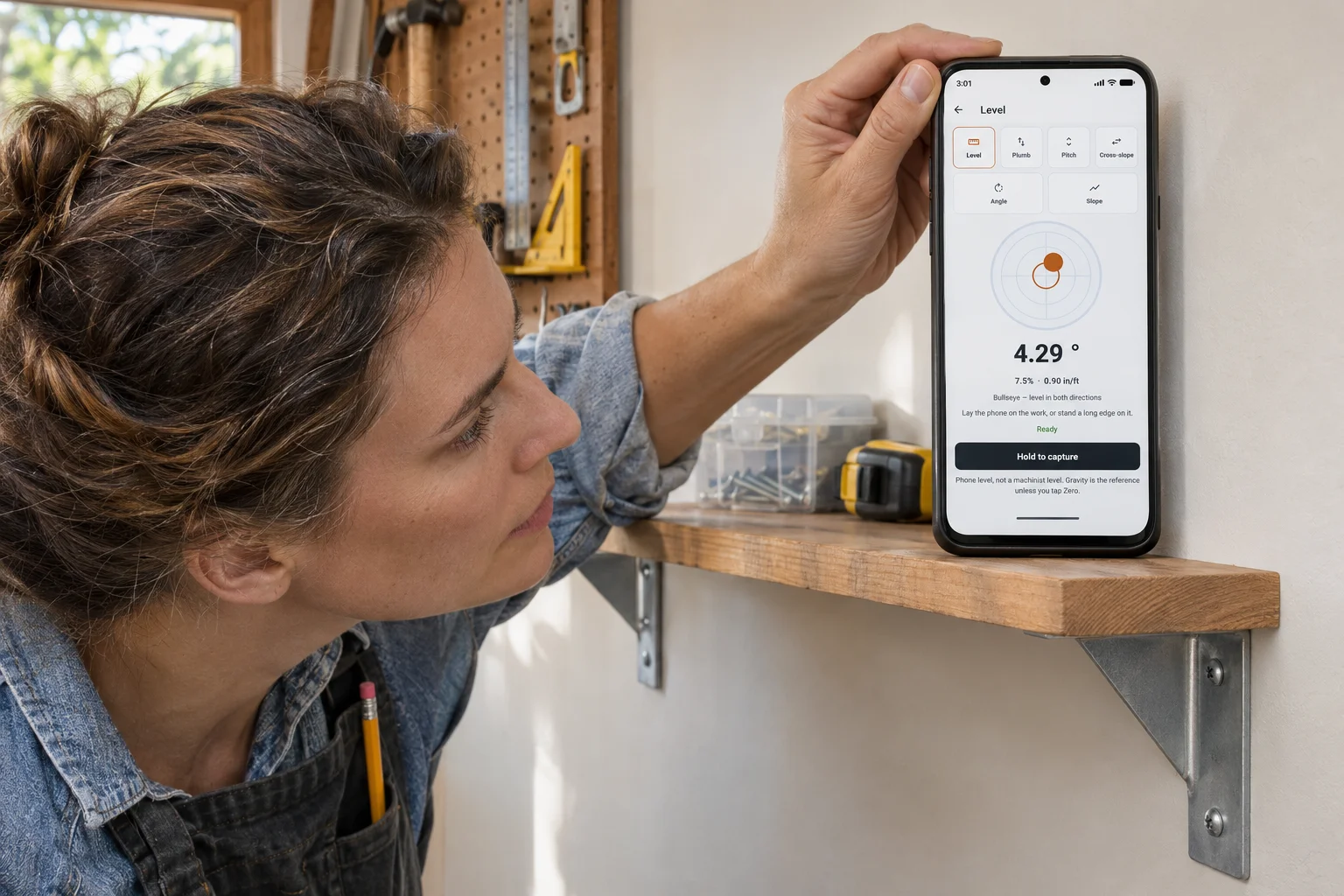
- Check a shelf or benchtop against horizontal. The bullseye shows tilt in two directions when the phone lies flat.
- Plumb
- Stand the long edge against a wall or post to see how far it leans from vertical.
- Pitch
- Tilt the top of the phone along the surface to read its angle. Useful for checking a sloping board or fixture.
- Cross-slope
- Read side-to-side tilt across the phone. Check across a surface as well as along it.
- Angle
- Tap Zero on a reference, then compare another surface with it. Zero defines a relative angle; it does not prove the reference is level.
- Slope
- Read the incline as percent slope, with degrees and rise-per-length units. Keep degrees and percent distinct: they describe the same incline in different ways.
Check it.
Capture it.
Come back to it.
- Choose the tool. Open Field → Phone → Level. Pick the mode that matches your check.
- Make good contact. Use a flat phone edge or back. Check that a case, camera bump, button, or debris is not making the phone rock.
- Wait for Ready. Hold the phone still, then press and hold Hold to capture.
- Review and save. Keep the reading with a label. Add a location or asset if useful; neither is required for the reading.
Taking the same check later? Keep the contact position and reference consistent so you know what changed.
Read the Phone tool instructionsUseful without the whole workflow.
Sometimes you only need to know which way to adjust a shelf. Read the instrument and carry on. Capture and records are there when the number matters later.
More tools when the job grows.
Check a heading with Compass, inspect Wi-Fi signal, or open an engineering calculator with readable formulas. Your phone can help with more than one part of the job.
Explore the rest of FieldengA practical check.
Know its limits.
Phone sensors, contact, and movement affect the reading. Displayed decimal places are not a guarantee of measurement accuracy.
- Check against a known reference before relying on a reading. A case or camera bump can change how the phone sits.
- Keep the phone still and follow the on-screen placement hint. Use the same edge and orientation when repeating a check.
- Zero is a relative reference, not sensor calibration. Level and Plumb use gravity; a zeroed relative angle answers a different question.
- Use suitable calibrated equipment when tolerances, safety, or specified work require it. Fieldeng does not certify alignment, construction compliance, or engineering approval.
Before you try it.
Does the phone level work offline?
Yes. Level uses motion sensors on the phone and core saved records work offline. No account is required in the app. Google Play test enrollment and installation need an internet connection and a Google account.
Is this a camera or AR measuring tool?
No. Level measures phone inclination from its motion sensors. It does not measure shelf length, room dimensions, or distances through the camera.
Can I use it as a bubble level or inclinometer?
Yes. Level includes a live vial and angle reading. Plumb, Pitch, Cross-slope, Angle, and Slope cover related checks. Accuracy depends on your device and setup; no universal accuracy figure is claimed.
Do I need to be an engineer?
No. Start with a familiar task such as checking a shelf or workbench. You can read the instrument without using calculations or adding a location or asset.
How do I get it?
Follow the Android closed-test instructions for group membership, Google Play enrollment, and installation. Public launch is coming to Google Play as a one-time purchase, with no subscription or ads. Regional price will be shown at launch.

Try your
first check.
Start with Level.
Find what else your phone can do.
Android closed test · Public launch coming to Google Play