The signal.
The connection.
Your phone.
Wi-Fi looks strong, but a device still won’t connect? Start with what your phone can see. Fieldeng brings Wi-Fi observations, cellular sampling, and LAN checks into the same field toolkit.
Try Networking in the Android testAndroid closed test available now.
No account required in the app. Network checks need the relevant connection.
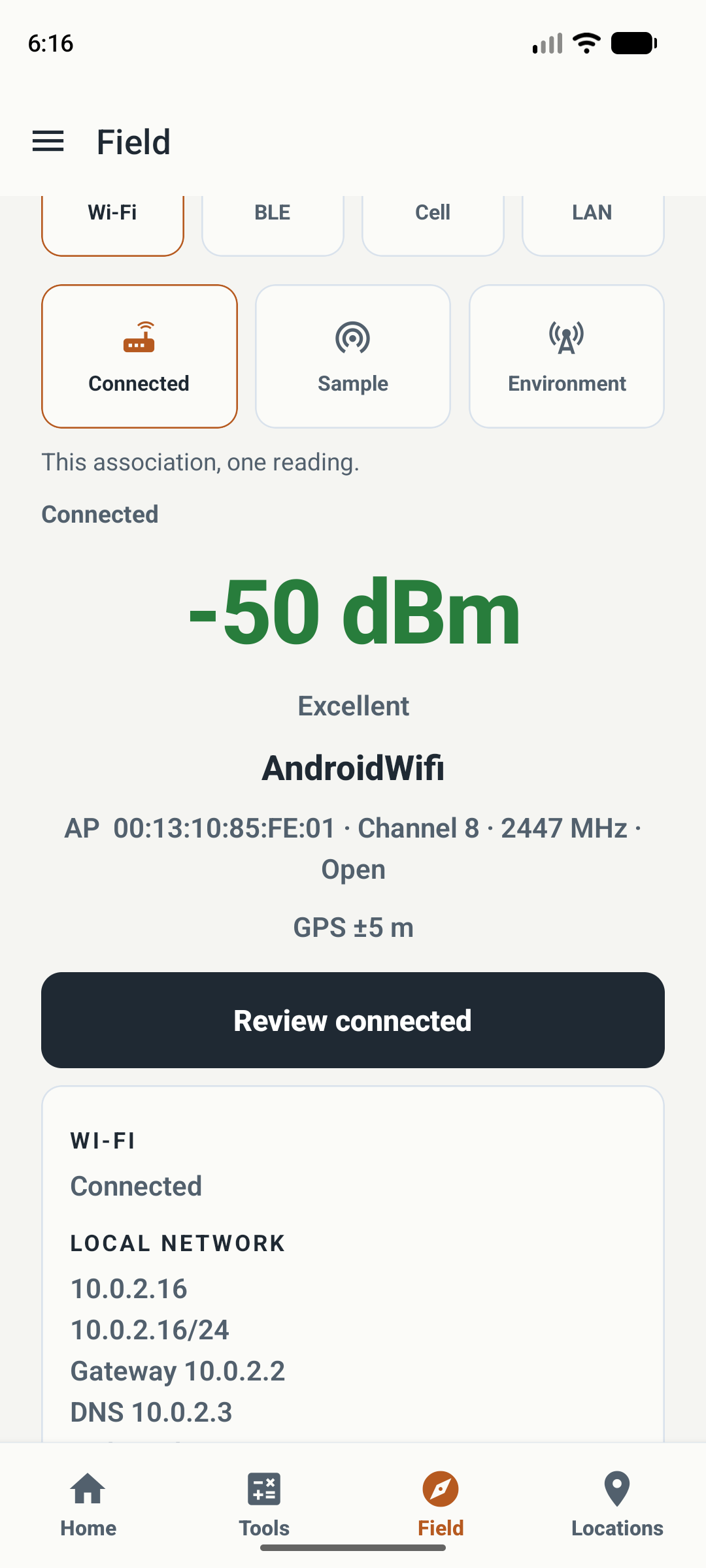
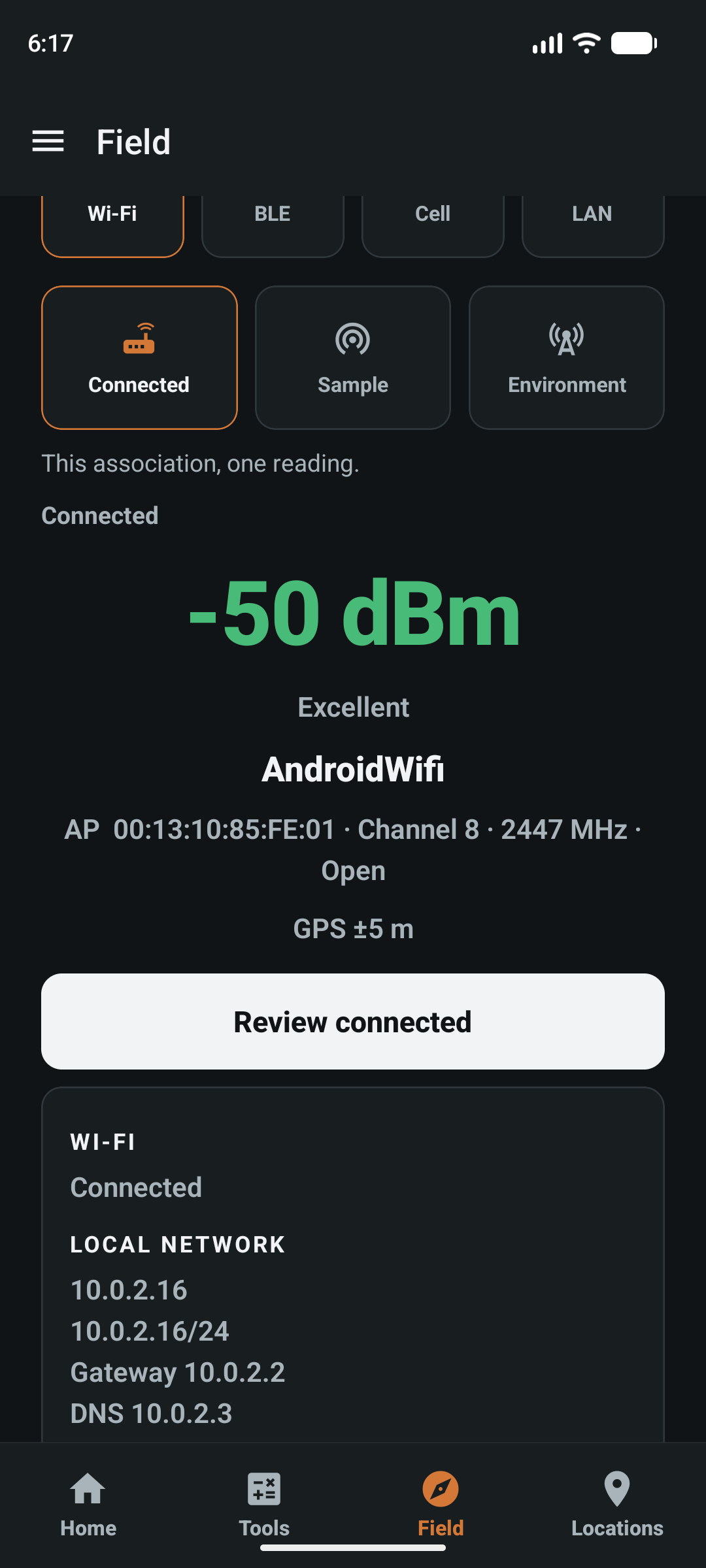
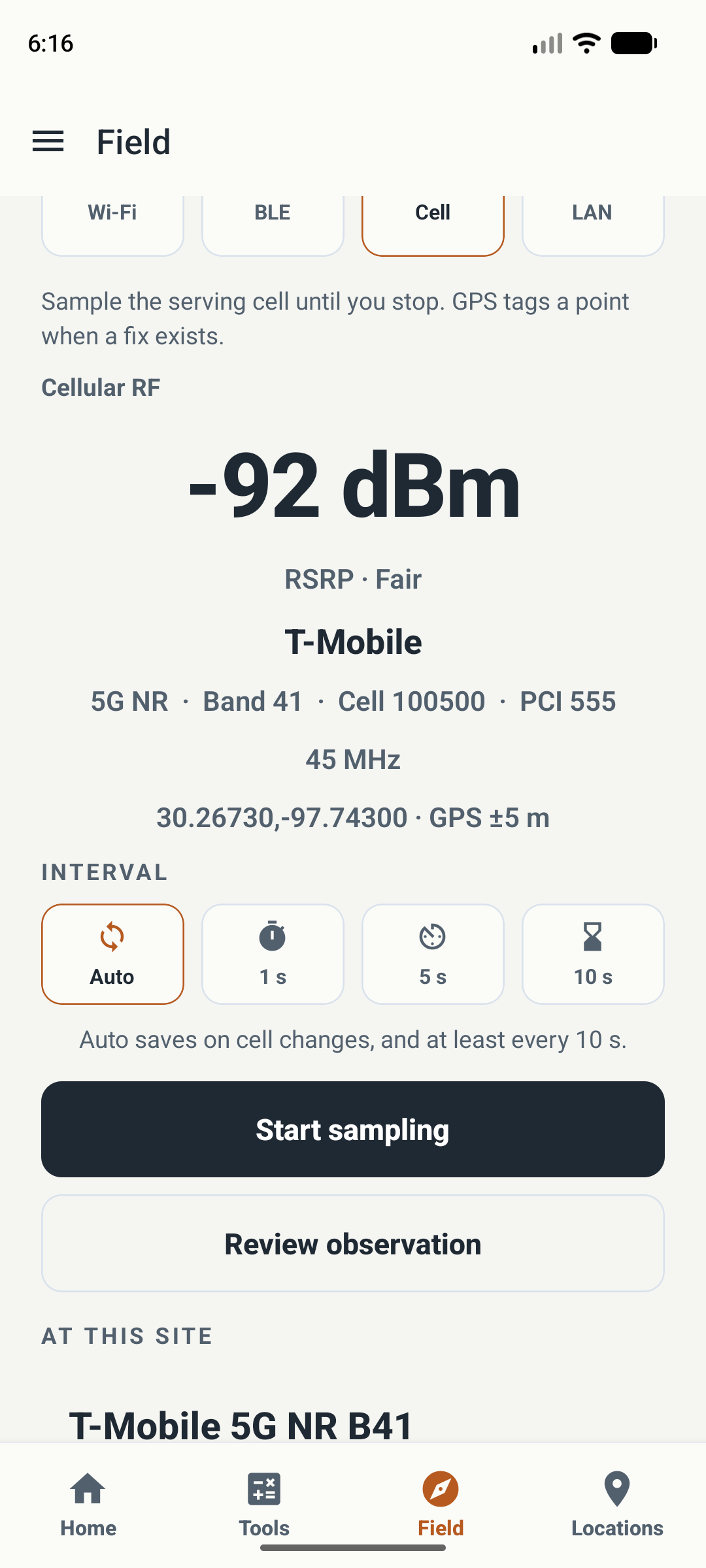
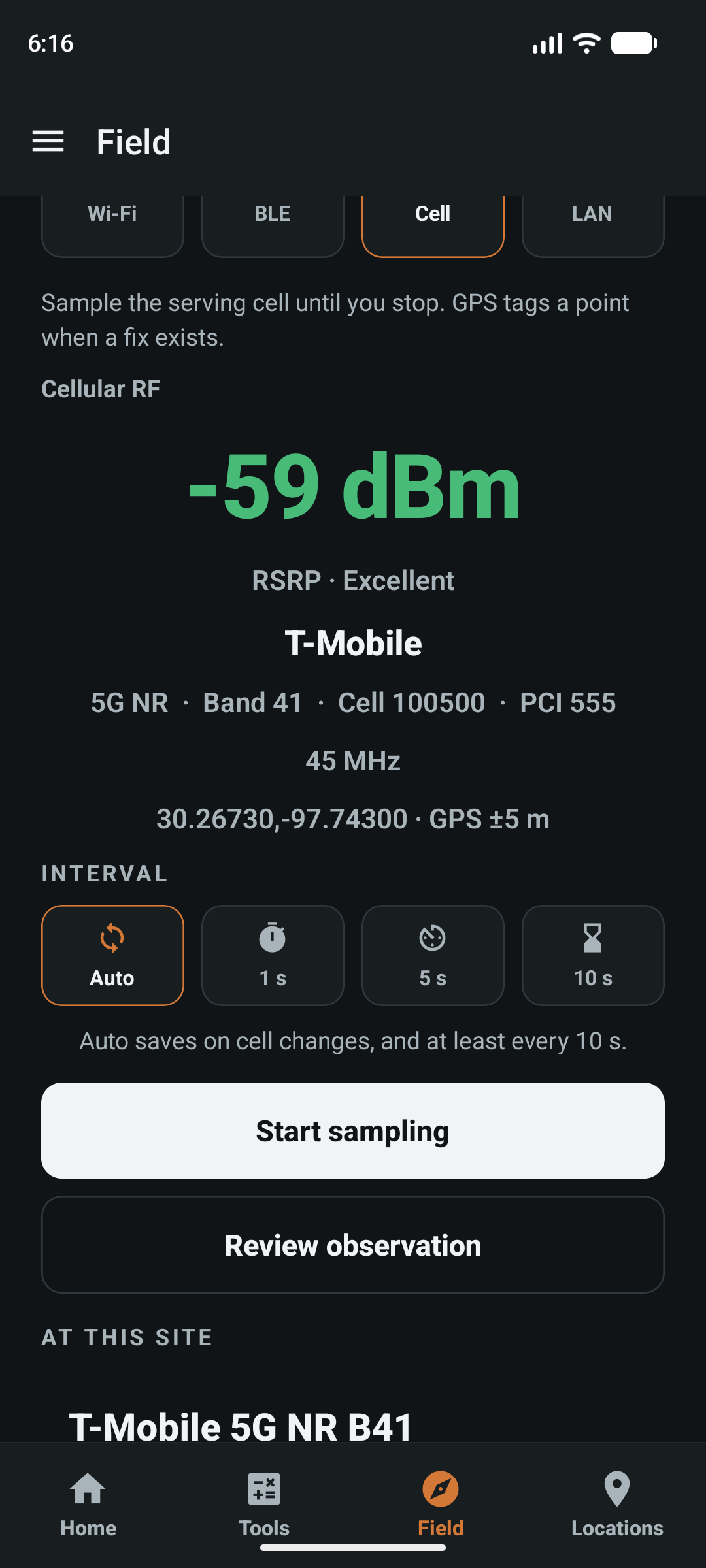
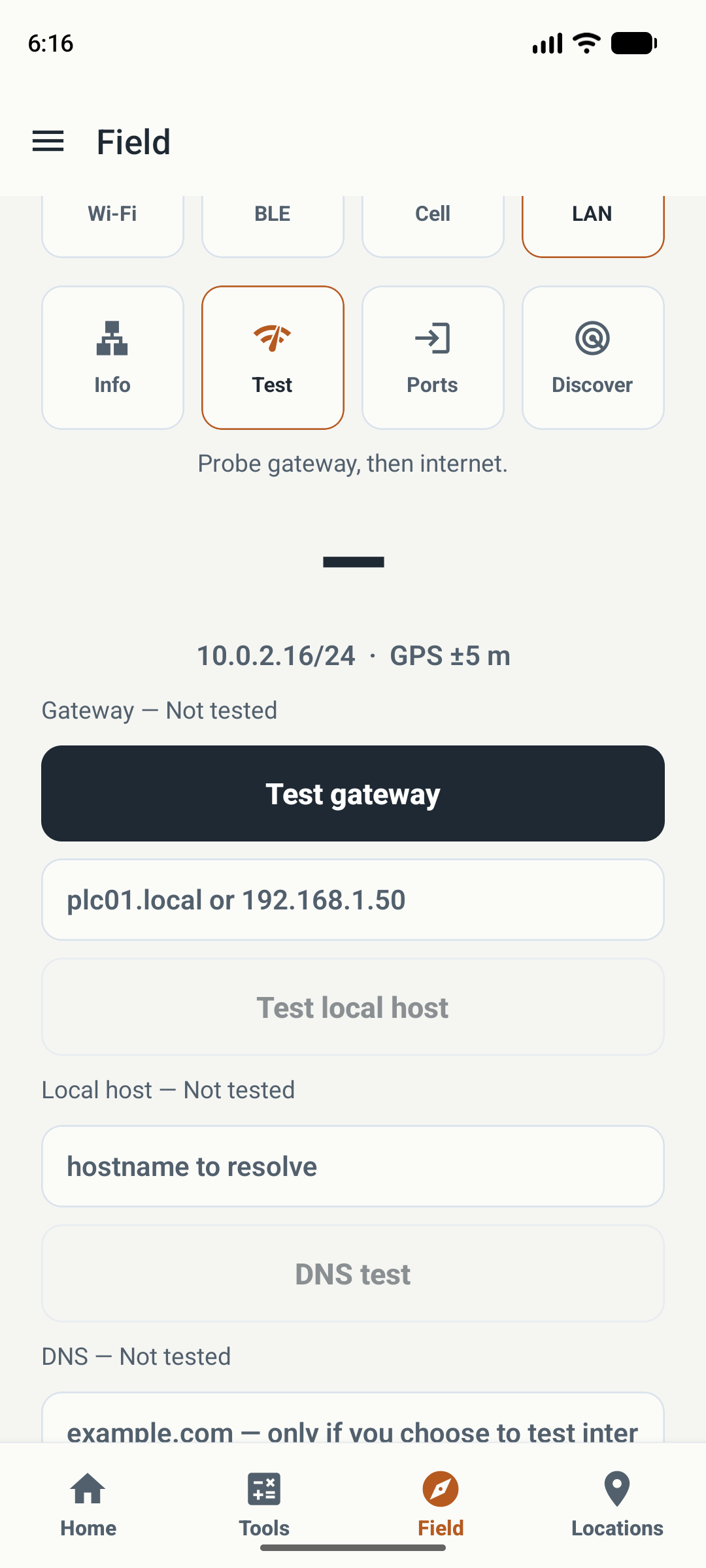
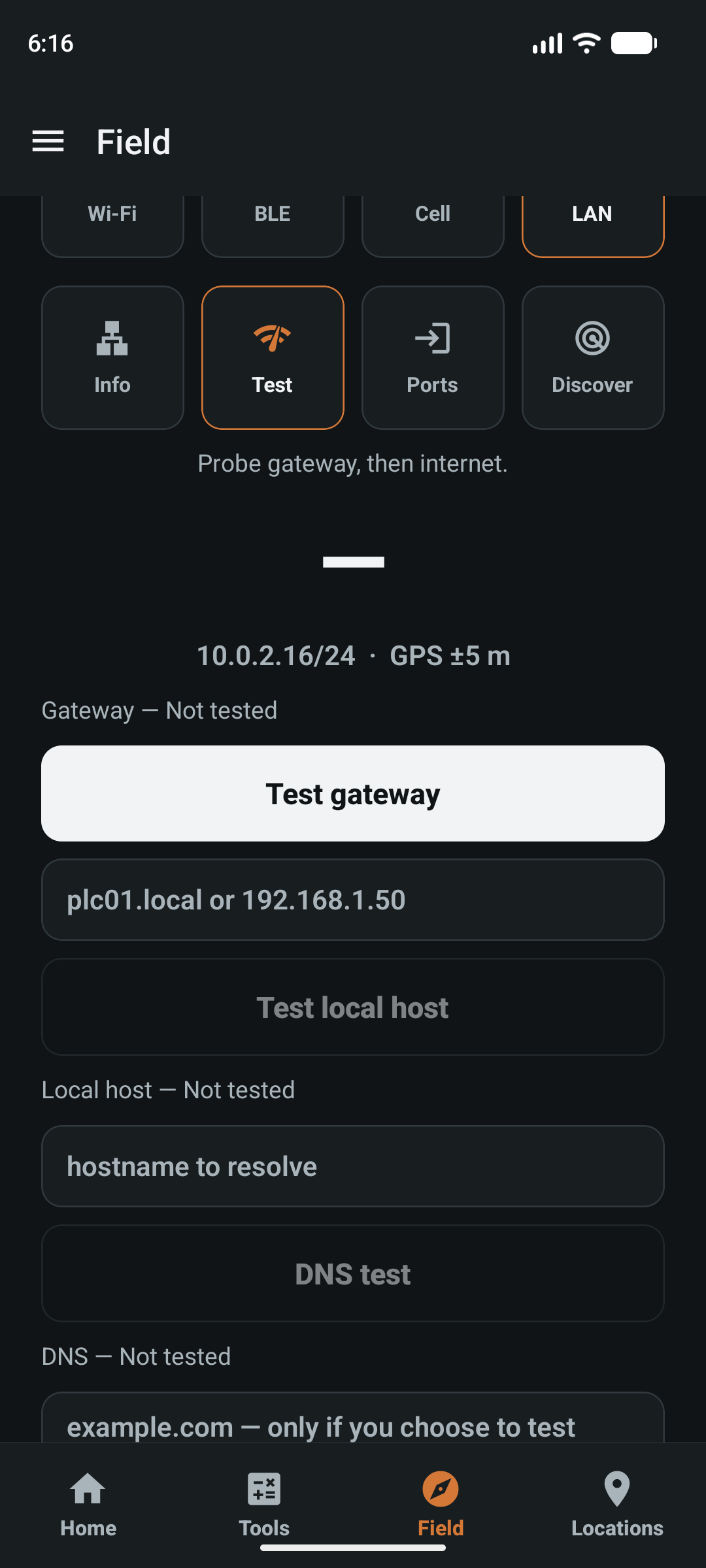
Actual app screens captured on a Pixel 8 Android emulator in light and dark themes. Emulator network details and cellular/GPS demonstration values illustrate the controls; they are not a real coverage survey or carrier performance test. Values may differ between captures.
Start with
the symptom.
Signal strength, local reachability, and internet access answer different questions. Choose the tool for the part you need to check.
- “The Wi-Fi drops here.”
- Start with Wi-Fi. Compare the connected signal where the problem occurs, or sample it during a short walk.
- “Mobile service changes here.”
- Start with Cell. Record the serving cell and available radio metrics over a session.
- “I’m connected, but it won’t load.”
- Start with LAN. Check network information, then test the gateway, a target host, or DNS separately.
Wi-Fi.
See the signal
where you stand.
Check a room, workshop, or equipment area from the phone’s point of view. Read the current association, take a sample session, or inspect nearby access points.
- Connected
- Read RSSI in dBm, with available network identity, channel, frequency, and security details. Review a connected reading to keep it.
- Sample
- Start a short survey and stop when finished. Samples can carry observation GPS when a fix exists, helping place readings in context.
- Environment
- Scan nearby access points and inspect the radios the phone can see. Android may throttle hardware scans; the app labels cached results.
A strong RSSI reading describes received signal, not internet speed or a guarantee that a service will respond.
Read the Wifi instructionsCellular.
Keep a session,
not just bars.
Start sampling at a site and stop when you’re done. Fieldeng records what the device reports about the serving cell, with GPS tags when a fix exists.
- Radio context
- Read available metrics such as RSRP, along with reported technology, band, and cell details. Availability depends on the device and Android APIs.
- Sampling interval
- Choose Auto, 1 s, 5 s, or 10 s. Auto saves on cell changes and at least every ten seconds.
- Location context
- GPS can tag samples when a fix exists. A missing fix remains missing; it is not filled with an invented position.
These are observations from this phone and session. They do not rate a carrier or establish coverage for every device.
Read the Cell instructionsLAN.
Find which part
answers.
Being associated with Wi-Fi is only the beginning. Inspect the local network and run a specific check from the phone.
- Info
- Inspect available IP addresses, gateway, DNS servers, and interface details. Save a snapshot of the current network view.
- Test
- Test the gateway or a local host, resolve a DNS hostname, or choose an internet target. Read each result separately to narrow the question.
- Ports
- Check a TCP port on a chosen host and use the available HTTP request control when appropriate for the service.
- Discover
- Discover advertised local services with mDNS, or discover hosts in a specified subnet. Use discovery on networks you administer or have permission to check.
Results reflect this phone’s route and network access at that moment. They do not provide a complete switch inventory or network certification.
Read the LAN instructionsCheck it here.
Keep the context.
Compare later.
- Choose the question. Open Field and pick Wi-Fi, Cell, or LAN. Start with the symptom.
- Check access. Allow the permissions Android requests and use the relevant radio or network connection.
- Observe or test. Capture one observation, run a short sampling session, or test the host and service you intend to reach.
- Keep the result. Use the tool’s review or save action. Select the relevant location or asset when the record needs that context.
Repeating a check? Keep the phone, position, target, and connection consistent so differences are easier to interpret.
See how GPS point capture adds location context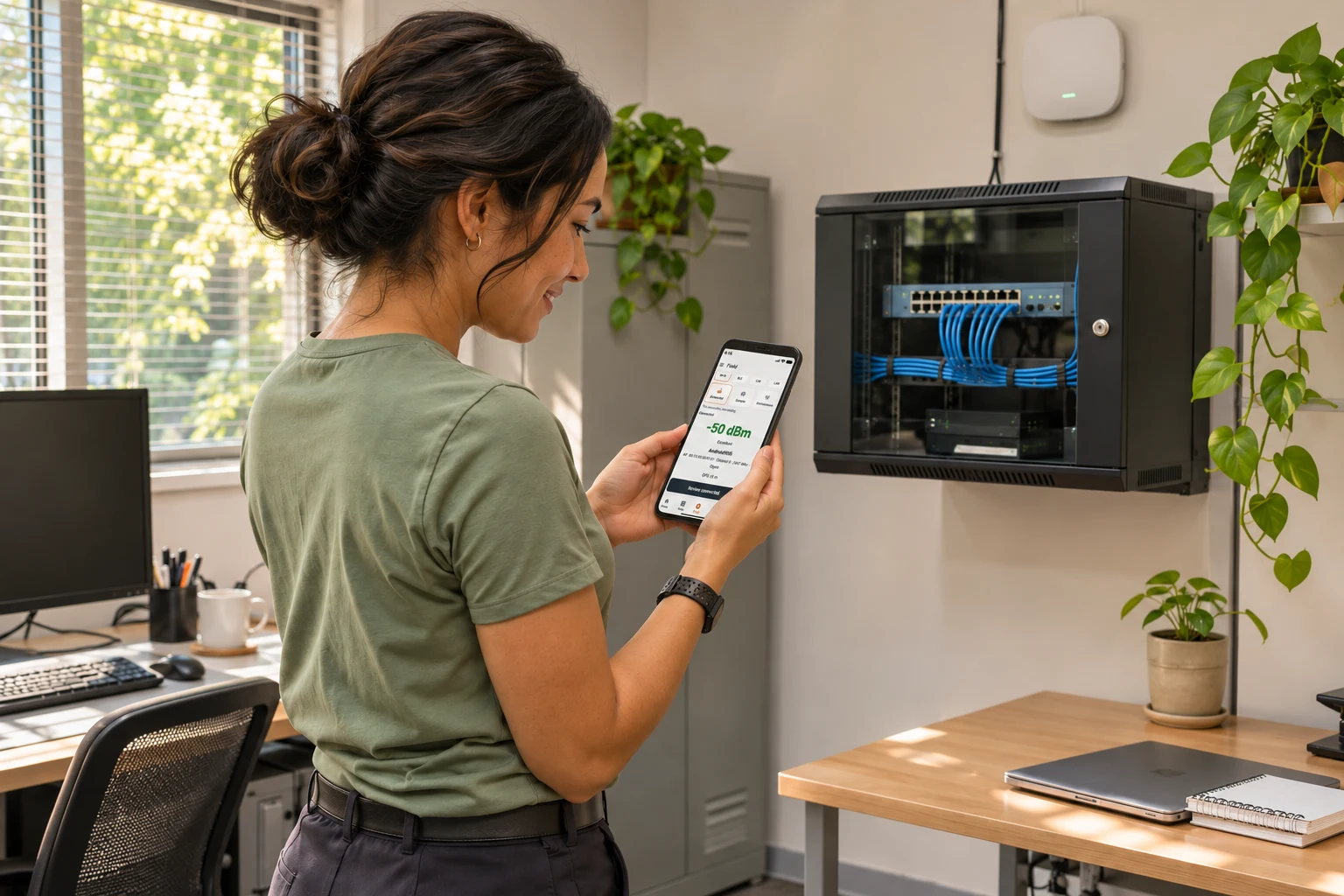
A useful first look for support.
Bring a clear observation to the next conversation: which network, which place, what the signal showed, and which target answered. Keep the record with the job instead of relying on memory.
The phone’s view.
Know its limits.
Permissions, radio state, hardware, network policy, and Android restrictions affect what Fieldeng can observe.
- Wi-Fi identity and scans may require nearby-device or location access, and location services may need to be on. Follow the app’s permission and status messages.
- RSSI and cellular RF values are observations, not throughput tests. A signal label alone does not explain every connection problem.
- Firewalls, client isolation, and services that do not answer probes can limit LAN results and discovery. A missing response is not a complete diagnosis.
- Saved records and calculators can be useful offline. Scans need the relevant radio; host and service tests need a reachable network path.
Before you try it.
Does Networking replace Wi-Fi, Cell, and LAN in the app?
Networking groups them here on the website. In the app, open Field and choose Wi-Fi, Cell, or LAN for the task in front of you.
Is this an internet speed test?
These tools observe Wi-Fi and cellular signals and test network reachability, DNS, and service access. Signal strength is not a download or upload speed measurement.
Can I use it at home or in a small office?
Yes. Start with a connected Wi-Fi reading or a specific LAN check. Use the site and asset workflow when you need to keep results organized.
Why are some fields or networks missing?
Android permissions, scan throttling, hardware support, and network configuration affect available details. Fieldeng reports unavailable or cached information rather than guaranteeing a complete inventory.
Can I keep observations with a location?
Yes. Sampling can include GPS when a fix exists, and readings can be associated with the selected site. GPS availability and accuracy depend on the phone and surroundings.
How do I try it?
Join the Android closed test and install Fieldeng. No account is required in the app. Google Play enrollment and installation require internet access and a Google account.

A clearer
connection check.
Start with one question.
Keep what you find.
Android closed test · Public launch coming to Google Play