The equipment.
The reading.
The whole story.
A number needs context. Keep the equipment’s standing notes, record what you found on a visit, and use a custom form when the same check comes around again.
Try Capture & Notes in the Android testAndroid closed test available now.
Core records work offline. No account required in the app.
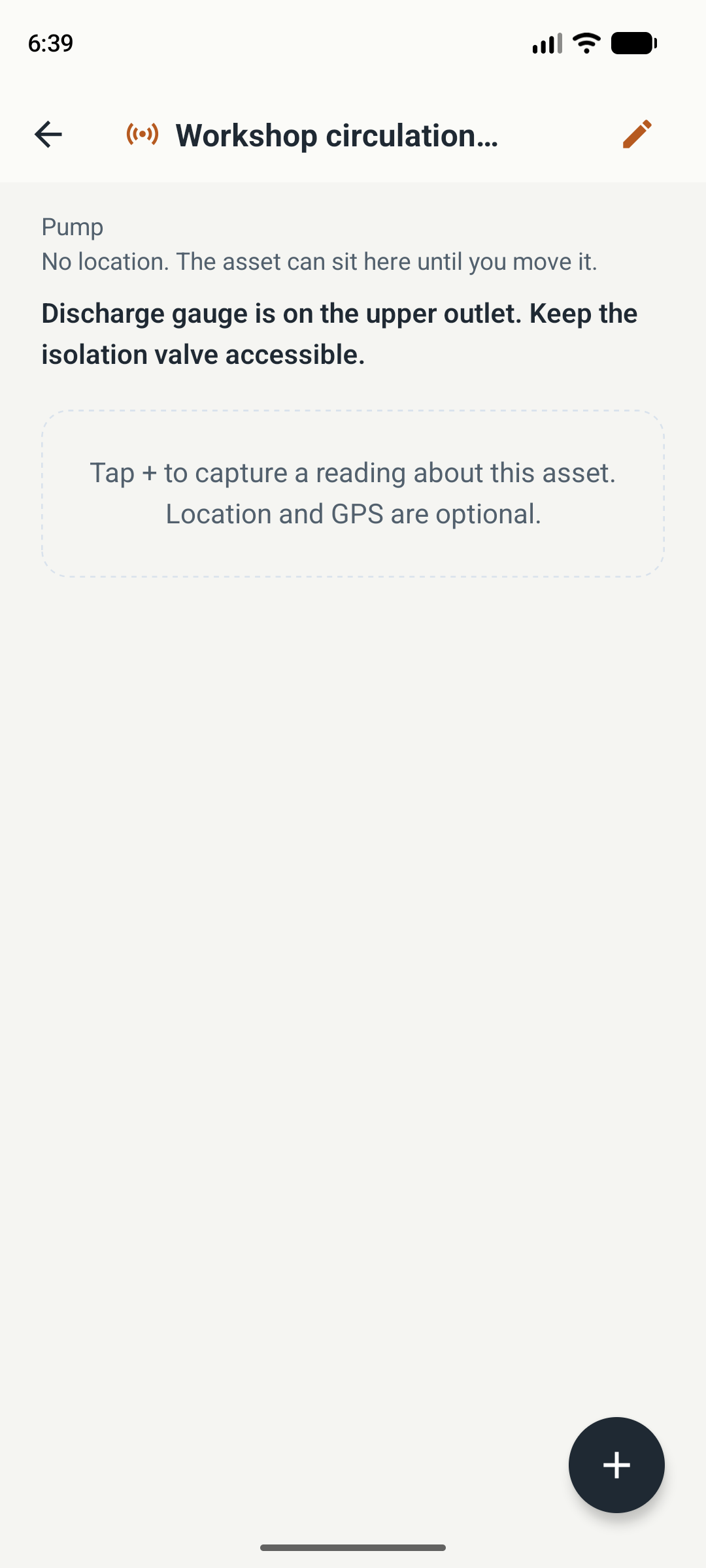
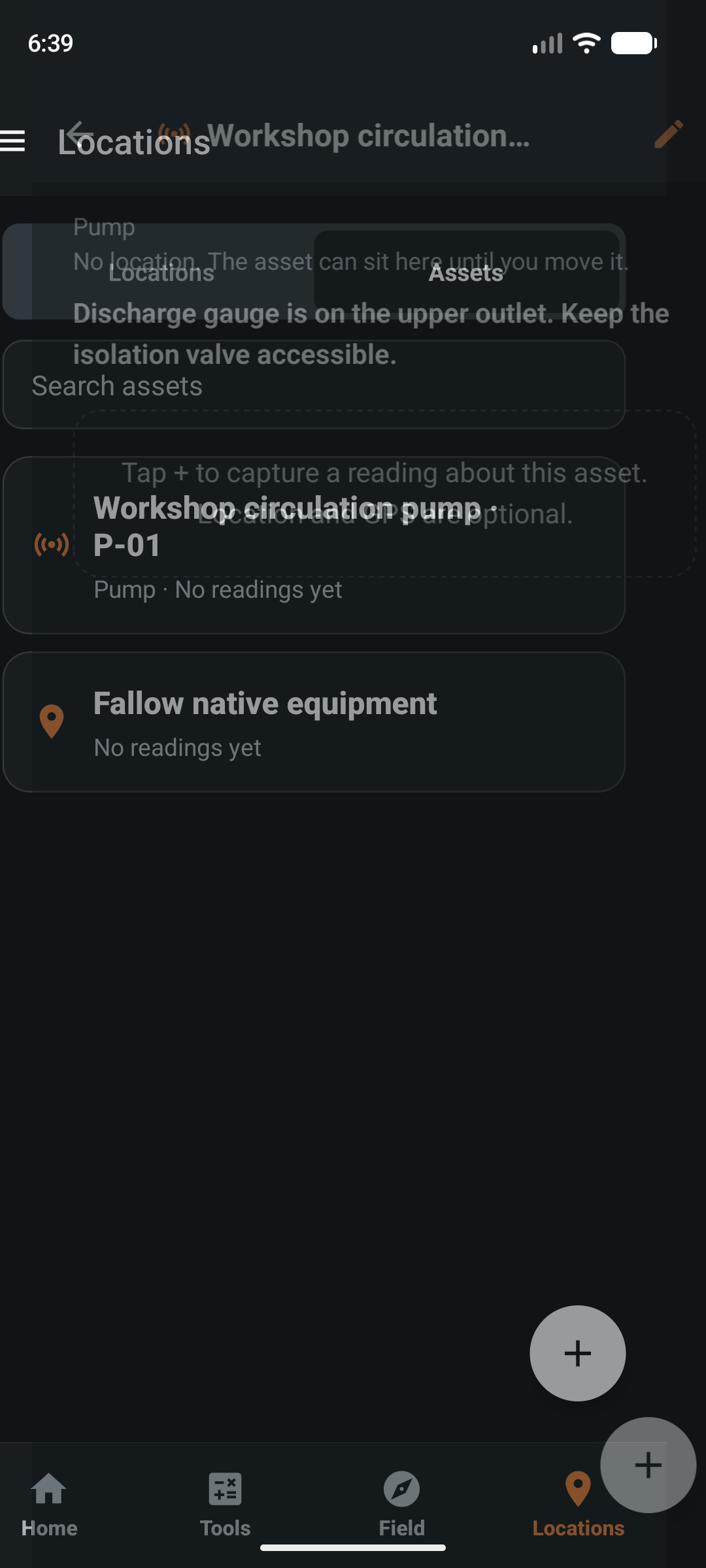
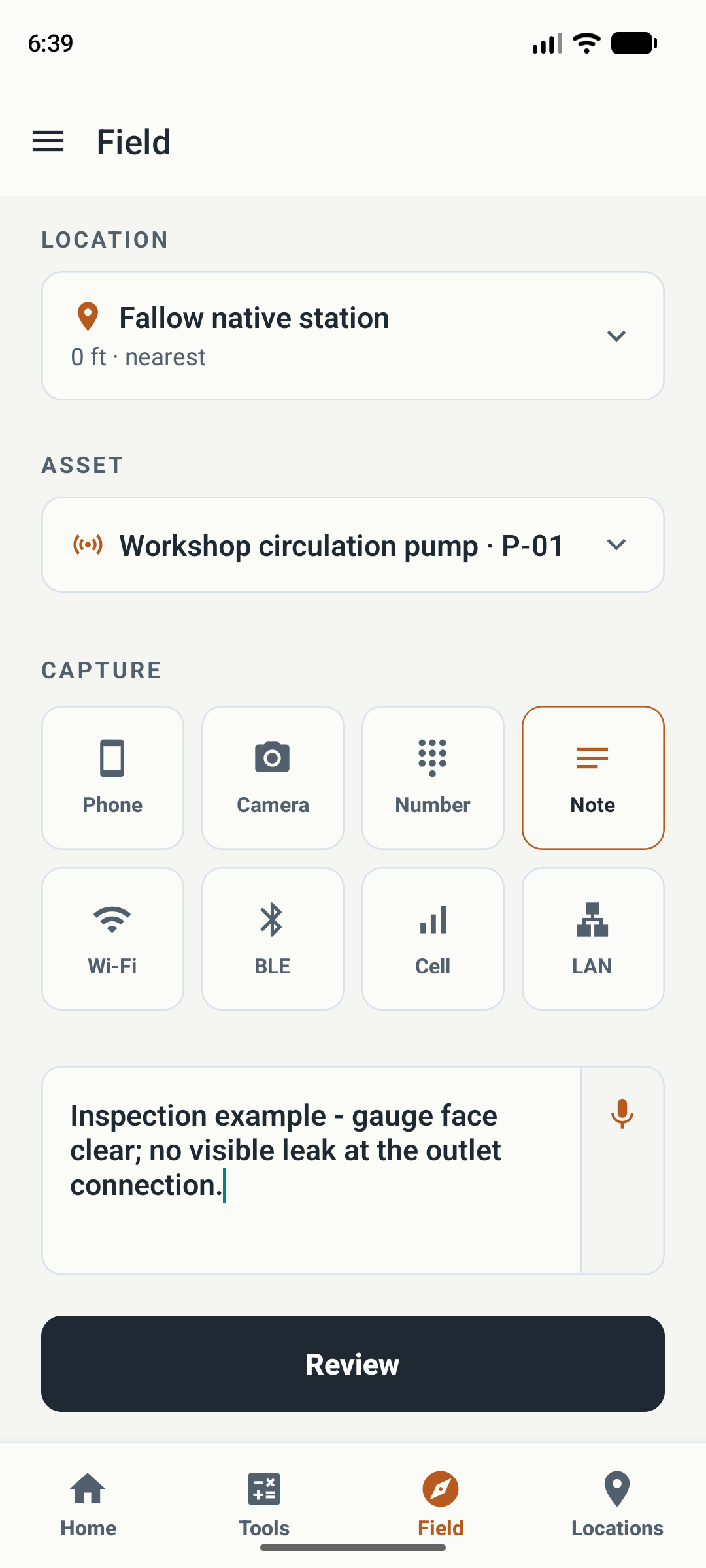
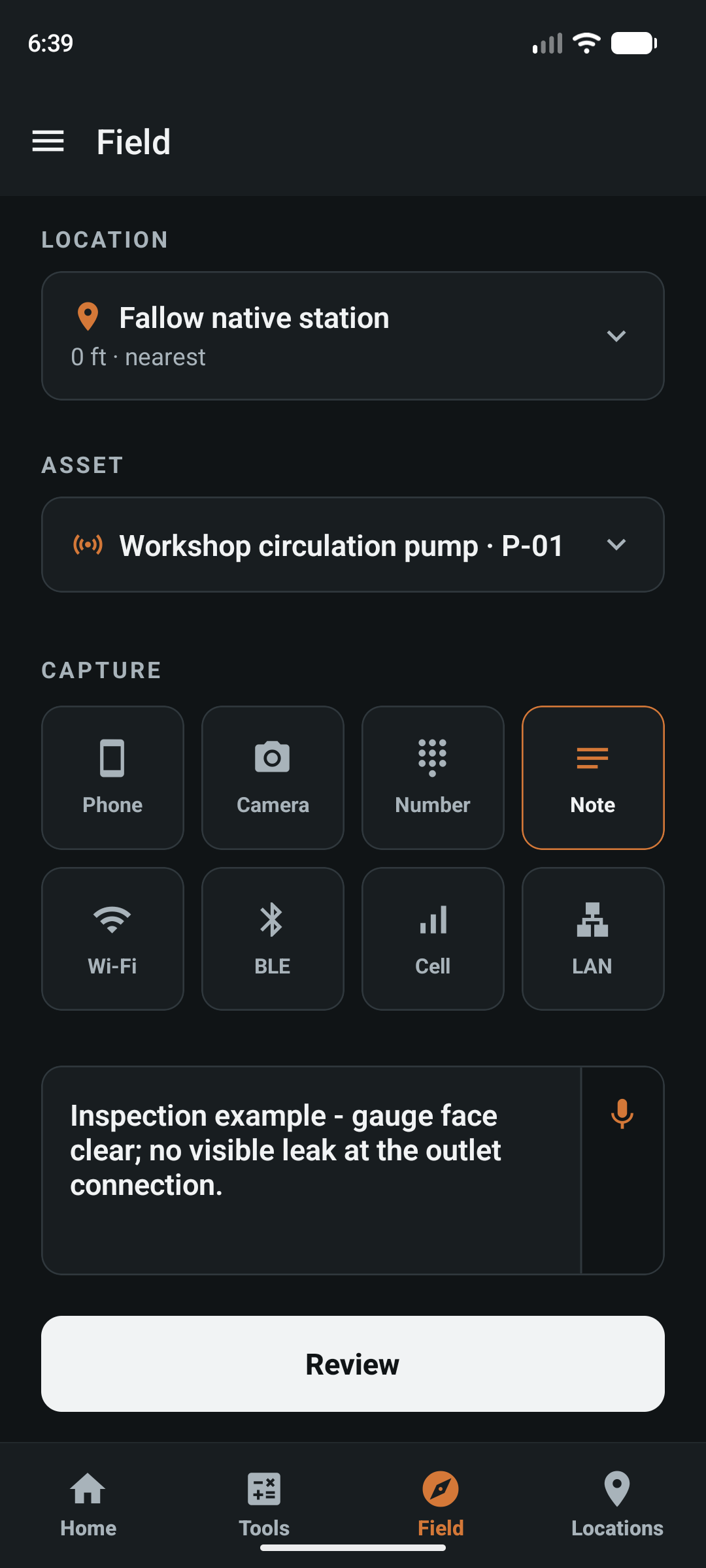
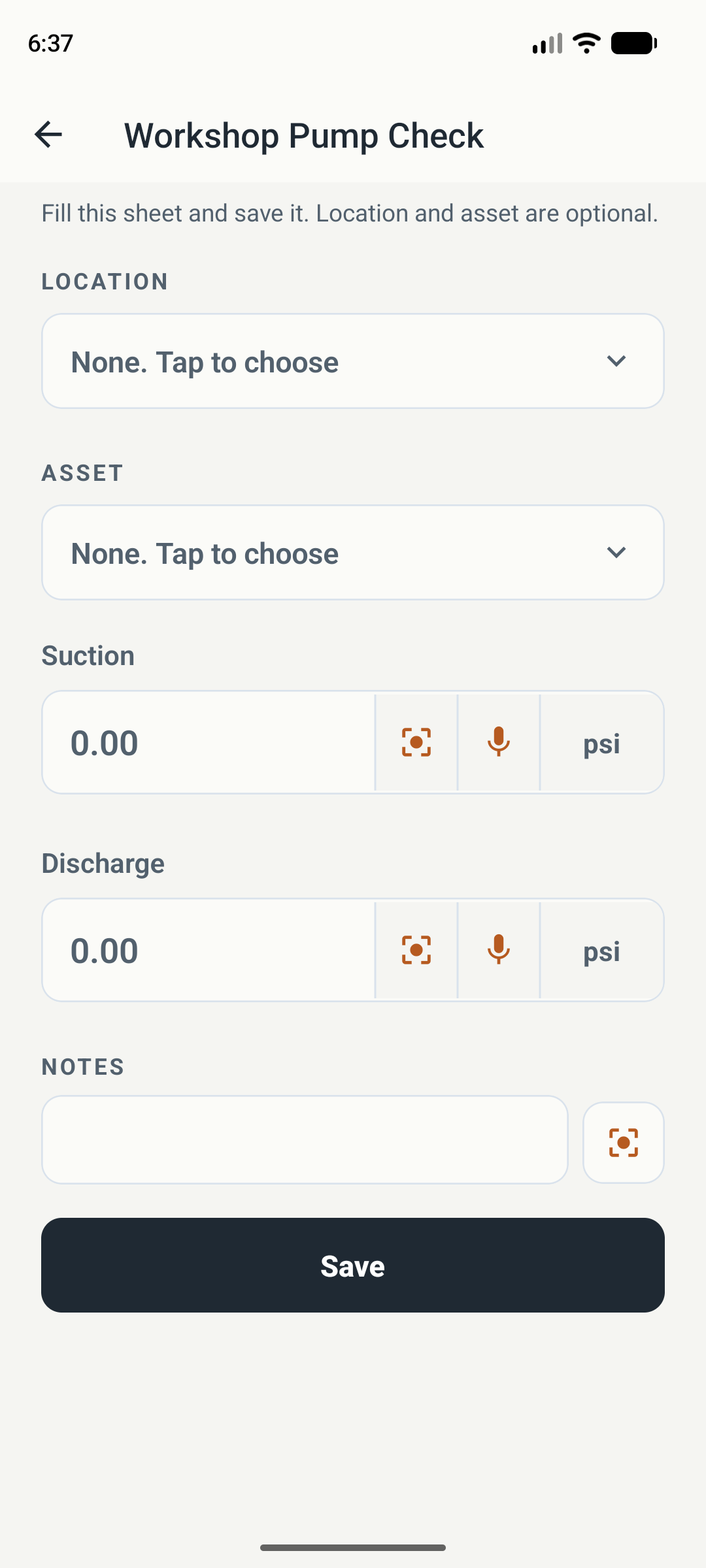
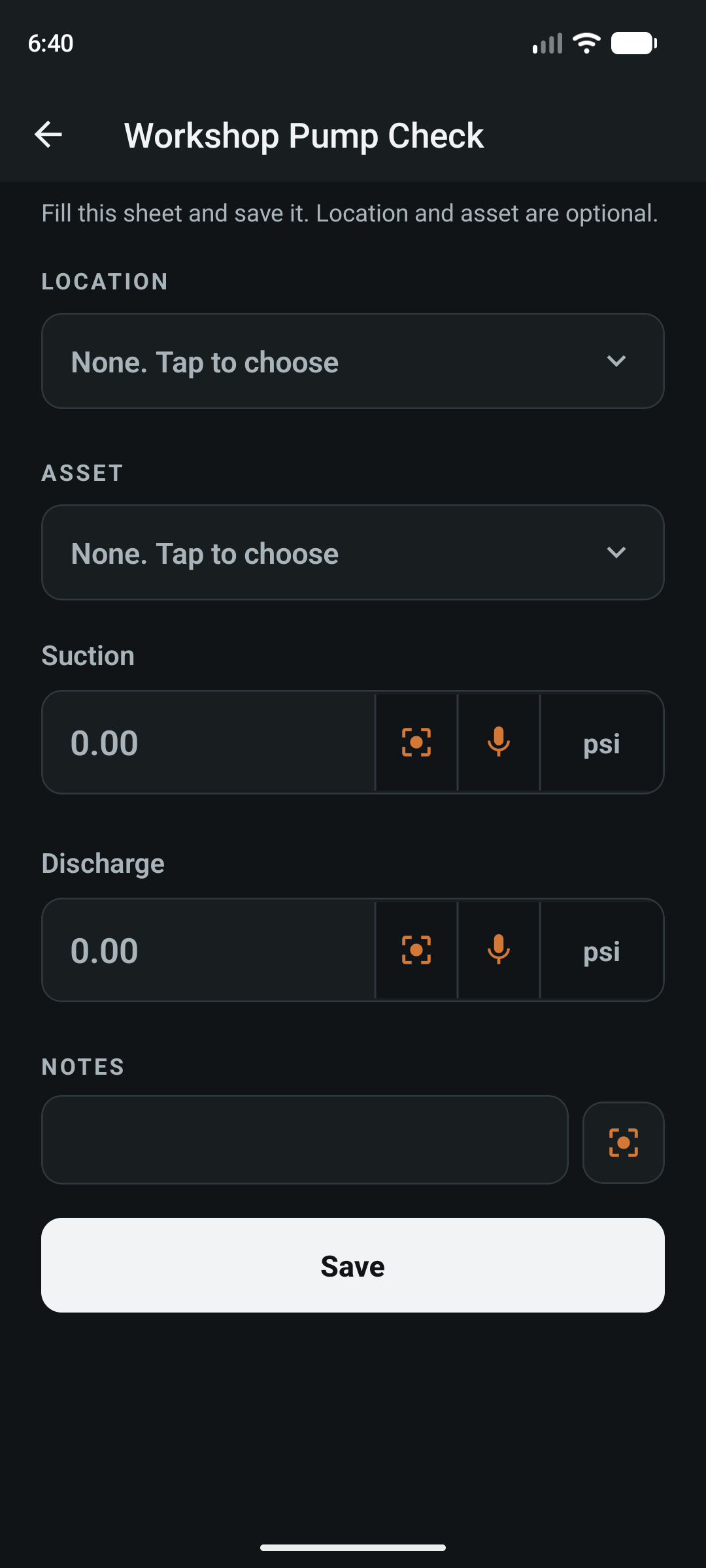
Actual app screens captured on a Pixel 8 Android emulator in light and dark themes. Workshop pump, notes, and form are demonstration content. Form fields are shown before saving an inspection; placeholders are not measured values.
Remember the thing.
Not just the place.
A router, pump, condenser, or test point is an asset. Its location can change while its identity stays the same.
- Standing notes
- Keep useful equipment context on the asset: which outlet has the gauge, how the unit is labeled, or what to check before the next visit. Edit the asset when that description changes.
- Readings about it
- Open an asset and use + to capture a new reading with that asset selected. Its measurement history stays connected to the equipment.
- Location when useful
- Assign a location when the asset sits there. If it moves, edit its location instead of deleting and recreating it. Asset identity, site coordinates, and observation GPS serve different purposes.
Capture the number.
Keep the explanation.
Open Field and choose the method that fits the observation. Asset and location are optional context.
- Number
- Type or speak a value. Choose the measurement kind and check its unit before saving. Voice availability depends on the device’s speech support.
- Note
- Write conditions, tags, or findings that are words rather than measured values. Use the microphone when speech input is available, then review the text.
- Camera
- Capture a photo for the record, or read a digital display or analog gauge. Confirm proposed numeric readings before they fill a field. Explore camera readings.
- Phone and radio tools
- Bring in an instrument reading or network observation where it fits the job. Level, Compass, GPS, and Networking each have their own workflow.
Your checks.
Your fields.
A repeatable sheet.
Open Forms from the menu. Start with a shipped sheet and adapt it, or choose New to build a form for the active project.
- Choose the fields
- Add numbers, text, yes/no values, single choices, date/time, and location fields. Set labels, descriptions, field order, defaults, and required fields to match the check.
- Keep units explicit
- Number fields carry units. Use Field capture or a bound calculator for supported numeric inputs, then review the value in the form.
- Enable trends
- Turn on Include in trends for numeric fields you want to compare later. Keep field meanings and units consistent across repeated checks.
- Entry or survey
- Save one completed entry, or use survey mode when the form offers it to collect repeated readings before completing the survey.
Shipped starting points include Pressure Log, Temperature Log, Loop Check, Radio Check, Rectifier Inspection, Survey Point, and Field Notes.
Read the Forms instructions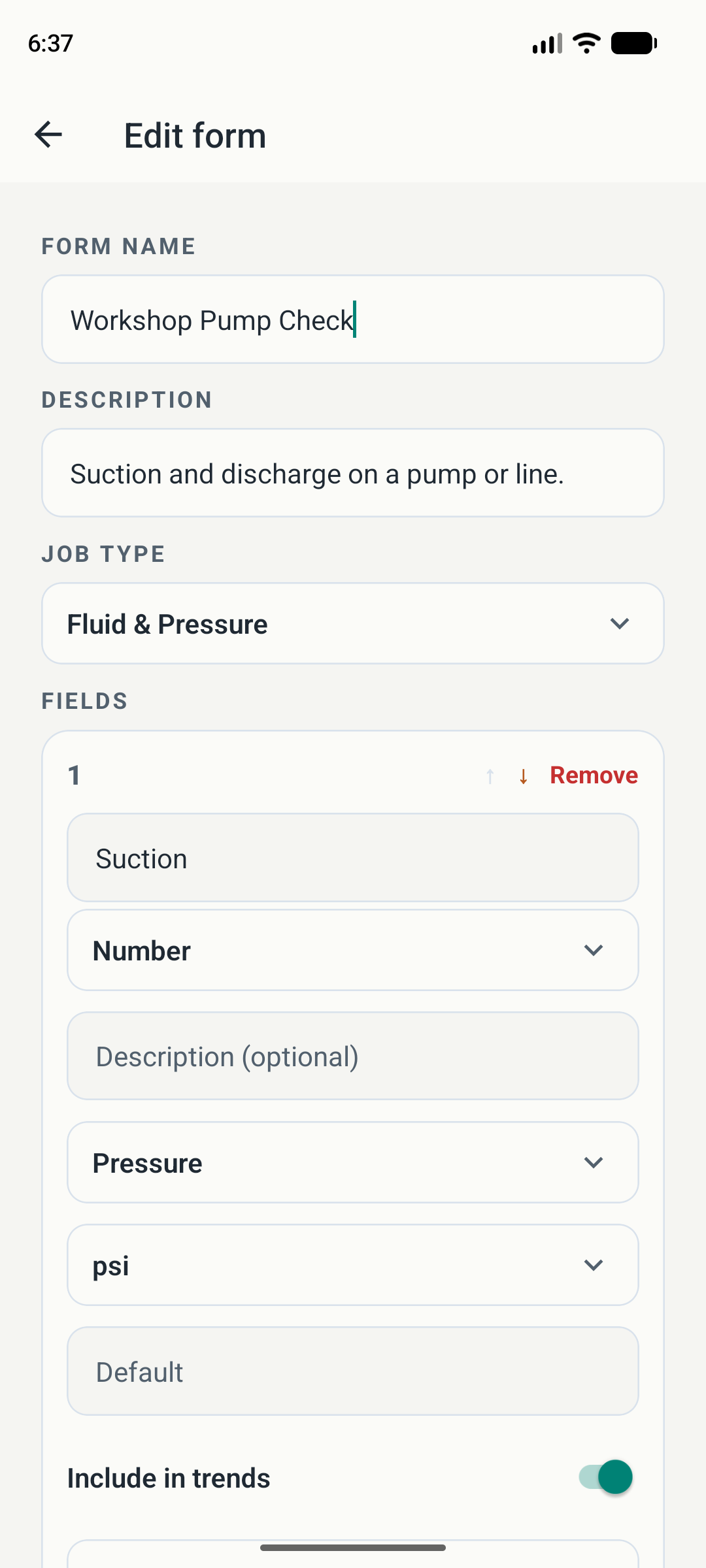
One pump.
Three kinds
of context.
- Name the asset. Create Workshop circulation pump, identifier P-01. Add a standing note explaining where to find the discharge gauge.
- Record the visit. Select that asset in Field. Capture the reading and write a note describing the conditions you actually observed.
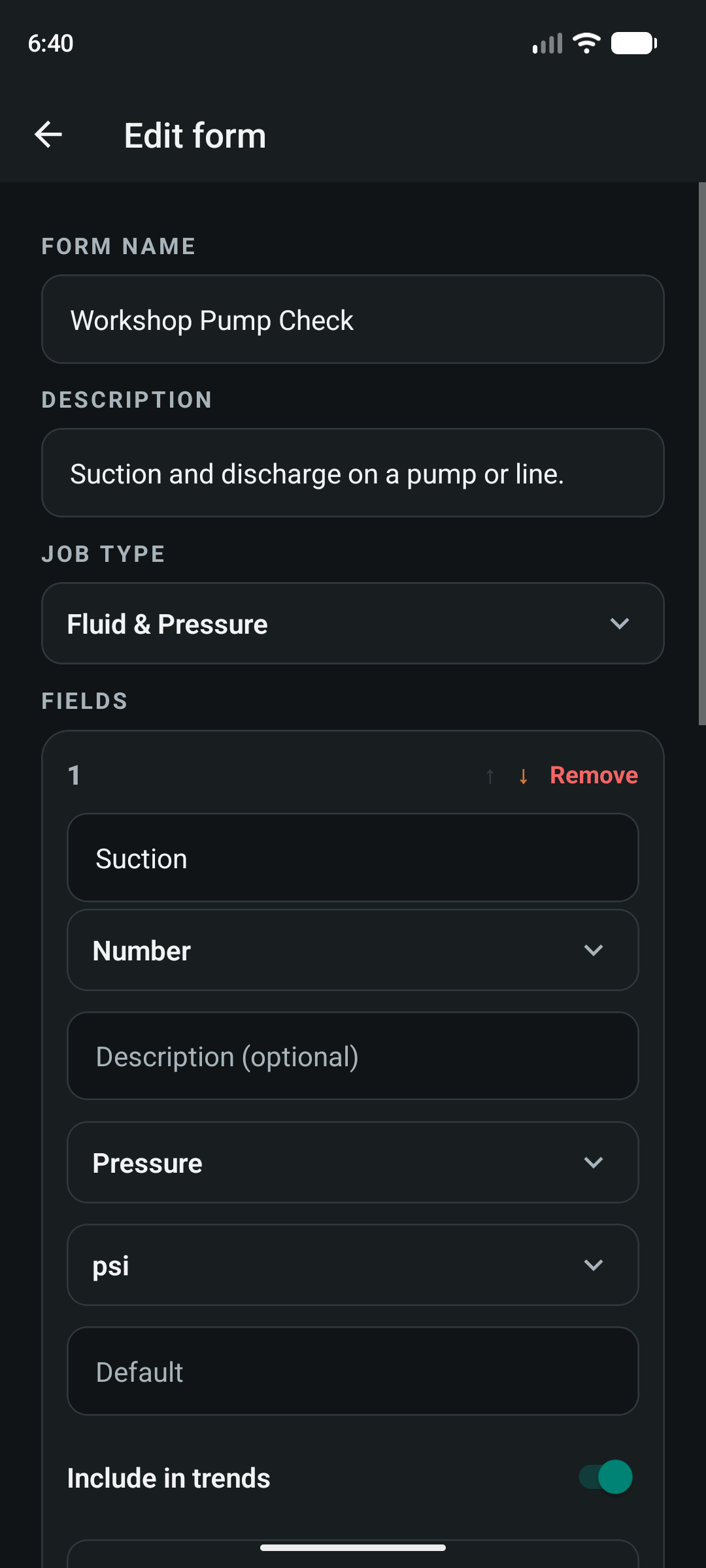
- Make the next check repeatable. Adapt Pressure Log into a pump-check form, with suction, discharge, and notes.
- Use the same meaning next time. Select the relevant asset and location, fill the fields, check the units, and save the entry.
The example is a record-keeping workflow, not a prescribed maintenance procedure. Choose checks and limits appropriate to the equipment.
Useful beyond a formal inspection.
Keep a workshop compressor’s readings, log a home heating check, or record observations about a router. A single note is enough when you only need words; a form earns its place when the check repeats.
Keep context optional.
A quick reading does not need a full asset setup. Records can name an asset, a location, both, or neither. Add the context that will help you understand it later.
Before you try it.
How is an asset note different from a field note?
An asset note describes the equipment and is edited with that asset. A field note records an observation, with optional asset and location context.
Can I make my own inspection form?
Yes. Open Forms and choose New, or import a shipped sheet and adapt it. Forms belong to the active project and support required fields, units, defaults, and supported numeric trends.
Can a form use camera or calculator values?
Number fields can receive supported Field captures or a bound calculator result. Confirm camera proposals and review the value and unit before saving.
Does moving an asset erase its identity?
No. Edit the asset’s location when it moves. Keep the same asset instead of creating a replacement identity for each place.
Do I need a location or account?
Location and asset are optional for captures and form records. No account is required in the app. Core records work offline; speech and other capture capabilities depend on device support.
How do I try it?
Join the Android closed test. Google Play enrollment and installation require internet access and a Google account.

Keep more
than a number.
Start with a note.
Build the sheet when you need it.
Android closed test · Public launch coming to Google Play